
General WordPress settings
Understand icons and date formats
Section titled “Understand icons and date formats”Site icon and favicon
Section titled “Site icon and favicon”Open Settings → General → Site Icon. The site icon, also known as a favicon, appears in browser tabs and can be used when adding the website to a smartphone or tablet Home Screen. The browser and platform determine the exact appearance. WordPress supplies the icon controls; Site Essentials adds a short explanation without changing the image.

Choose an icon through the normal WordPress controls. The explanation does not upload or replace an image automatically.
Date and time examples
Section titled “Date and time examples”- Under Site Essentials → Admin interface, enable Explain date and time formats and save all settings.
- Open Settings → General. The additional examples explain format letters with fixed examples rather than relying only on the current time.
- Choose and save formats through the existing WordPress controls. Site Essentials does not change the selected format, native preview or saving.
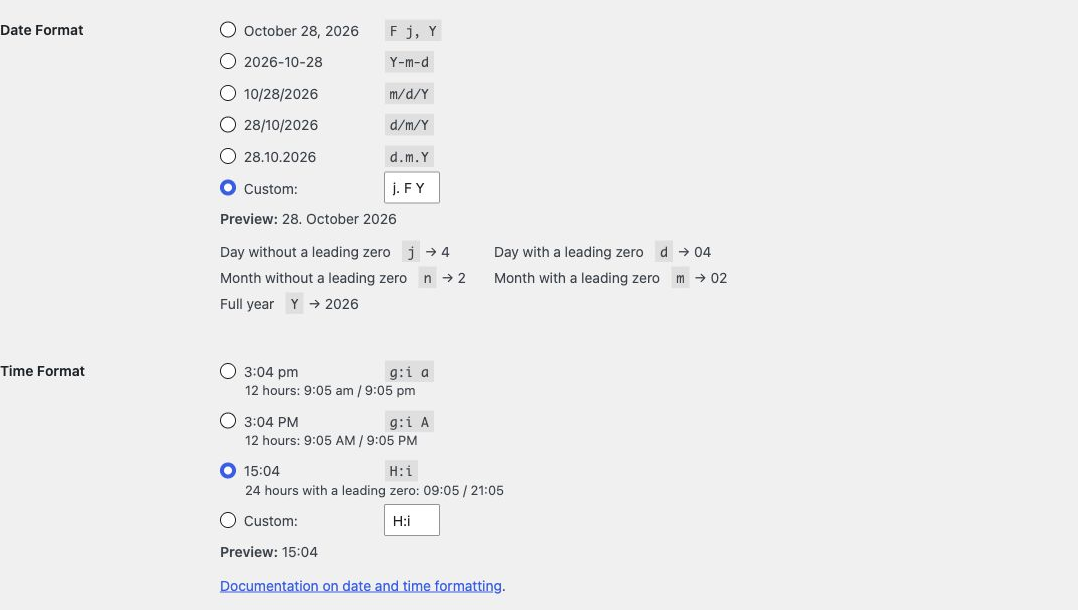
A leading zero is visible before ten: G:i gives 9:05, while H:i gives 09:05. Both give 21:05 in the evening. j / d and n / m show the same distinction for day and month. Examples stack on narrow screens.
Disabling the explanation removes only the extra examples. Saved WordPress formats remain unchanged.
Imported from the published release 1.1.0. Original source · Deutsch