

WORDPRESS PLUGIN · DECKERWEB
Site EssentialsSite EssentialsFocused WordPress settings and practical administration tools.
Your WordPress. Your settings. Site Essentials brings focused settings and practical tools together for a WordPress website that fits your needs. Simplify administration, control WordPress features and reuse proven configurations across websites. Built for everyday site care and client handover, with support for single installations and individual sites in a Multisite network.
Version 1.1.1WordPress 7.1+PHP 8.2+
Small tools. For your everyday WordPress work.
WHAT’S INSIDE
Good to know.
Ready to use.
Comments, avatars, Heartbeat and revisions configured per site.
Media file sizes, sorting and document-type filters.
Focused appearance access by role with local personal exceptions.
Alternative post destinations and selected Page Links To migration.
Presets, draft review, import/export and configuration recovery.
Administrator website reminders, PHP information and Site Health details.
Single-site and Multisite; English and both German locales.
ALL FEATURES · VERSION 1.1.1
What’s included?
All features at a glance, grouped by task. You decide what to enable for your website. Three administrator checks are enabled by default; other optional modules are activated deliberately. Individual features have the limitations explained below.
Settings & presets
- Search and filter settings, comparing drafts with saved values or presets.
- Five included presets and up to 20 custom local presets.
- Review changes before saving and selectively apply them to a draft.
- Import and export configurations and reuse saved settings on other websites.
- Transfer collections of custom presets with validation and conflict-free names.
- Review and restore the previous configuration, or deliberately prepare a startup configuration.
Login & editors
- Hide the login language selector and periodic administrator-email prompt.
- Customize the login-logo link and description.
- Choose the Classic Editor per content type without converting existing blocks.
- Control fullscreen mode, welcome screens, the block directory, core patterns, external pattern suggestions and template editing.
- Use the classic widget interface and disable selected classic core widgets.
Administration & lists
- Offer title-only search in content lists while keeping full search as the default.
- Show and copy post, page, media and user IDs, with sorting in supported lists.
- Selectively add featured-image, modification-date and registration-date columns.
- Record the last successful login per user and website, without IP addresses or a login history.
- Adjust toolbar entries, the greeting and admin footer; show administrators the WordPress environment.
- Hide selected tool links, block-template/font menus and writing-settings sections.
Dashboard & client guidance
- Hide selected native dashboard widgets and the large welcome panel.
- Create one information widget with formatted instructions and links.
- Grant visibility to selected roles or individual users.
- Transfer saved widget text separately with explicit confirmation.
Design access & classic menus
- Control access to widgets, the Customizer and classic menus by role.
- Add local access exceptions for individual users.
- Restrict native widget/Customizer pages while retaining content and frontend output.
- Duplicate classic menus with their hierarchy, native link properties and SE visibility.
- Control classic-menu item visibility and set site defaults for native menu fields.
- Remove Bricks templates and taxonomies from navigation choices; hide native Site Editor menu links for classic Bricks themes.
Posts, blog & destinations
- Disable post administration and public blog output separately while retaining content.
- Use custom singular and plural labels for posts.
- Set alternative internal or external destinations for selected public content types.
- Use reversible redirects and new-tab/nofollow options while retaining editor and preview access.
- Import existing Page Links To destinations after review and explicit selection.
Media library & uploads
- Show file sizes in the media list and sort by them.
- Filter PDF, Office, ZIP, OpenDocument, CSV and text files in list and grid views.
- Selectively prevent new video uploads and new PDF thumbnail generation.
- Lowercase new upload filenames and show generated image sizes in the editor.
- Explain media-trash status and manual setup without changing configuration files.
- Measure local upload storage with bounded scheduled scans, not overall hosting usage.
Comments & local avatars
- Disable comments globally or per content type without deleting existing comments.
- Hide existing comments in normal frontend output while preserving private notes.
- Control the reply script, self-pingbacks and automatic comment-URL linking.
- Use local user images, allow permission-checked profile uploads and add an avatar column.
- Choose, upload or reset a local default avatar image.
- Prevent Gravatar requests for avatar output and defer to supported local-avatar providers.
WordPress features & interfaces
- Adjust Heartbeat intervals per area and content type and set revision limits.
- Selectively reduce emoji assets, public Dashicons and jQuery Migrate for logged-out visitors.
- Block XML-RPC and disable public search and author archives.
- Disable automatic WordPress spelling correction and restrict the core file editor on single sites.
- Disable native core AI features and the Connectors page; independent plugin AI is outside this scope.
- Control successful automatic-update emails separately for WordPress, plugins and themes; hide core-update notices based on permissions.
Page source, feeds & embeds
- Selectively remove generator, RSD, WLW, shortlink and REST references from page source.
- Control feed-discovery links independently of feed endpoints.
- Disable feed endpoints with a not-found response when needed.
- Control automatic URL embedding and the site’s own oEmbed offering separately.
- Remove the core fallback favicon without replacing a custom site icon.
Maintenance & website checks
- Use a published WordPress page as the maintenance page, designed in the Block or Classic Editor.
- Preview maintenance before enabling it; visitors receive HTTP 503 while administrators retain access.
- Respect active maintenance modes from Bricks, Elementor and Breakdance.
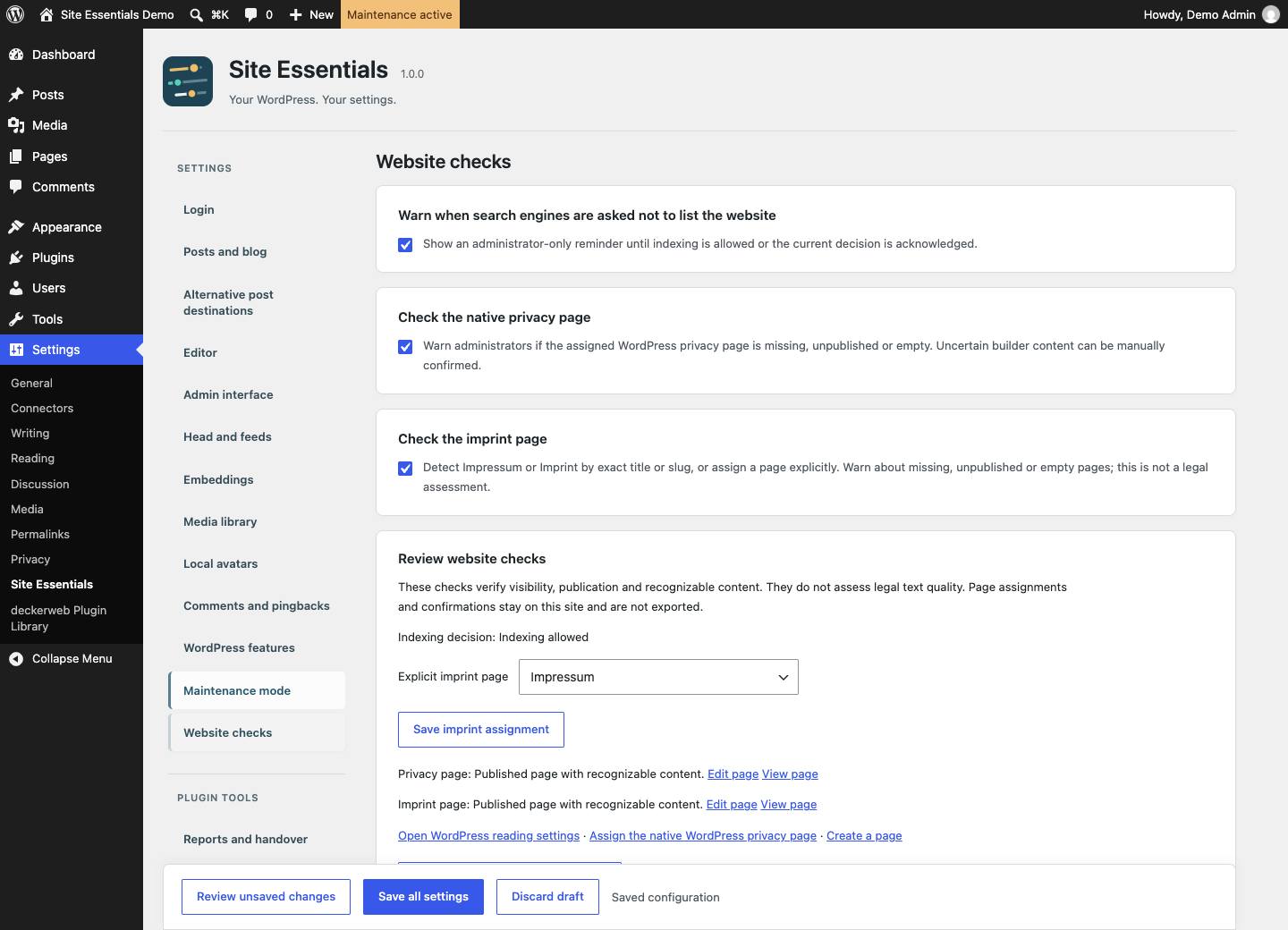
- Show administrator checks for search-engine indexing, the privacy page and the legal-notice page.
- Acknowledge intentional choices, without automatically changing visibility or assessing legal compliance.
- Use test links for 404/no-results pages, robots.txt, sitemaps and feeds, plus an explicitly requested anonymous homepage check.
Diagnostics, handover & Multisite
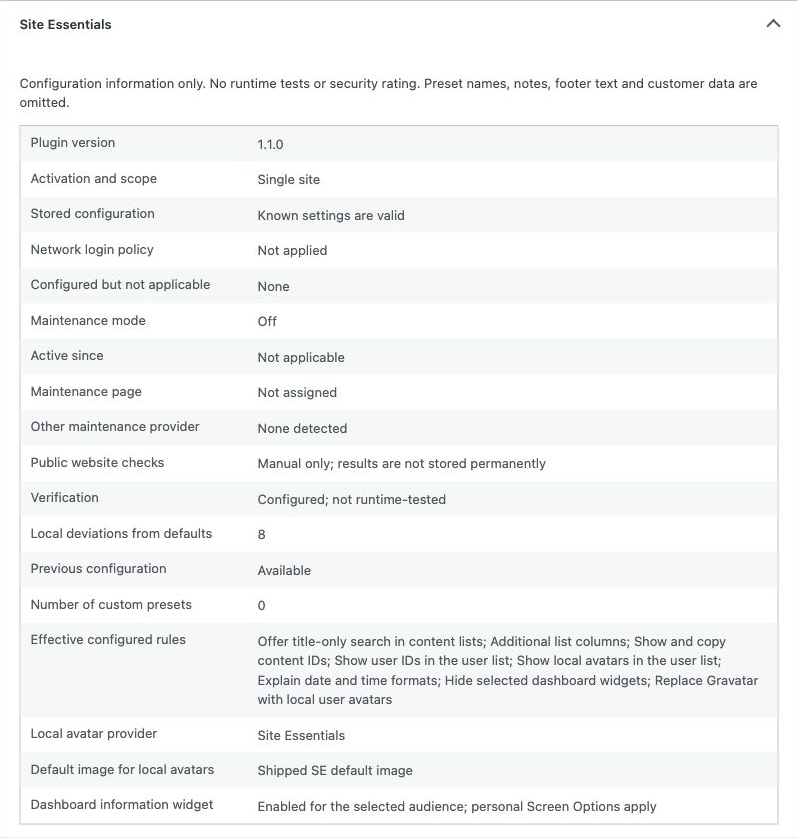
- Inspect settings, saved values and known dependencies through on-demand, data-minimizing diagnostics.
- Show PHP information, memory details and extension support to administrators only.
- Use a printable read-only view for website handover.
- Use configuration information in Site Health and contextual native navigation commands.
- Use date/time format examples, website-icon guidance and a wider Customizer CSS editor.
- Support single sites and Multisite with site-local settings; one network policy controls the login language selector.
- Import Falcon/Unbloater settings after conflict review and clean local or network plugin data separately.
Menu visibility is not access control; maintenance is not a permanent coming-soon mode. Media remain ordinary WordPress files. Revision limits may take effect on later saves. Some features depend on permissions, theme, WordPress version or other plugins. The guide explains the details and exceptions.
A LOOK INSIDE THE PLUGIN
See it in action.
Real views of example configurations. Select an image to enlarge it with its caption and browse the other views. The selections shown are not defaults.
Set up & adjust WordPress


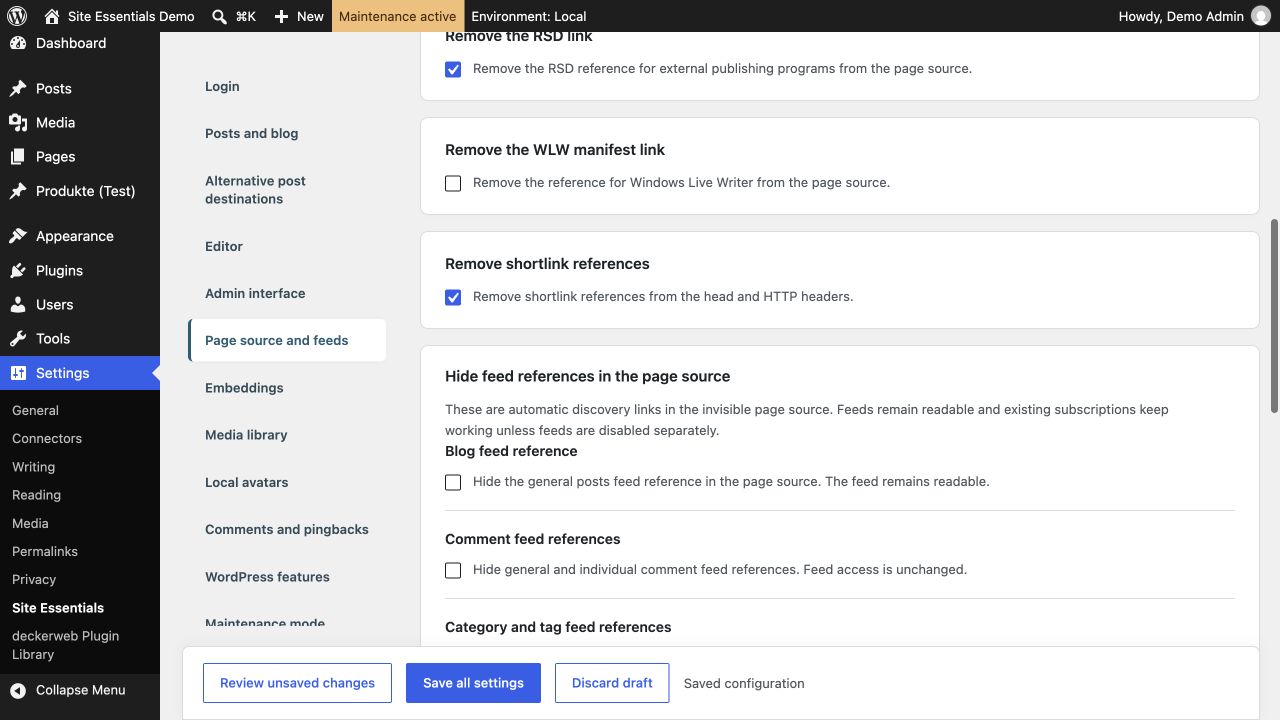
In everyday use

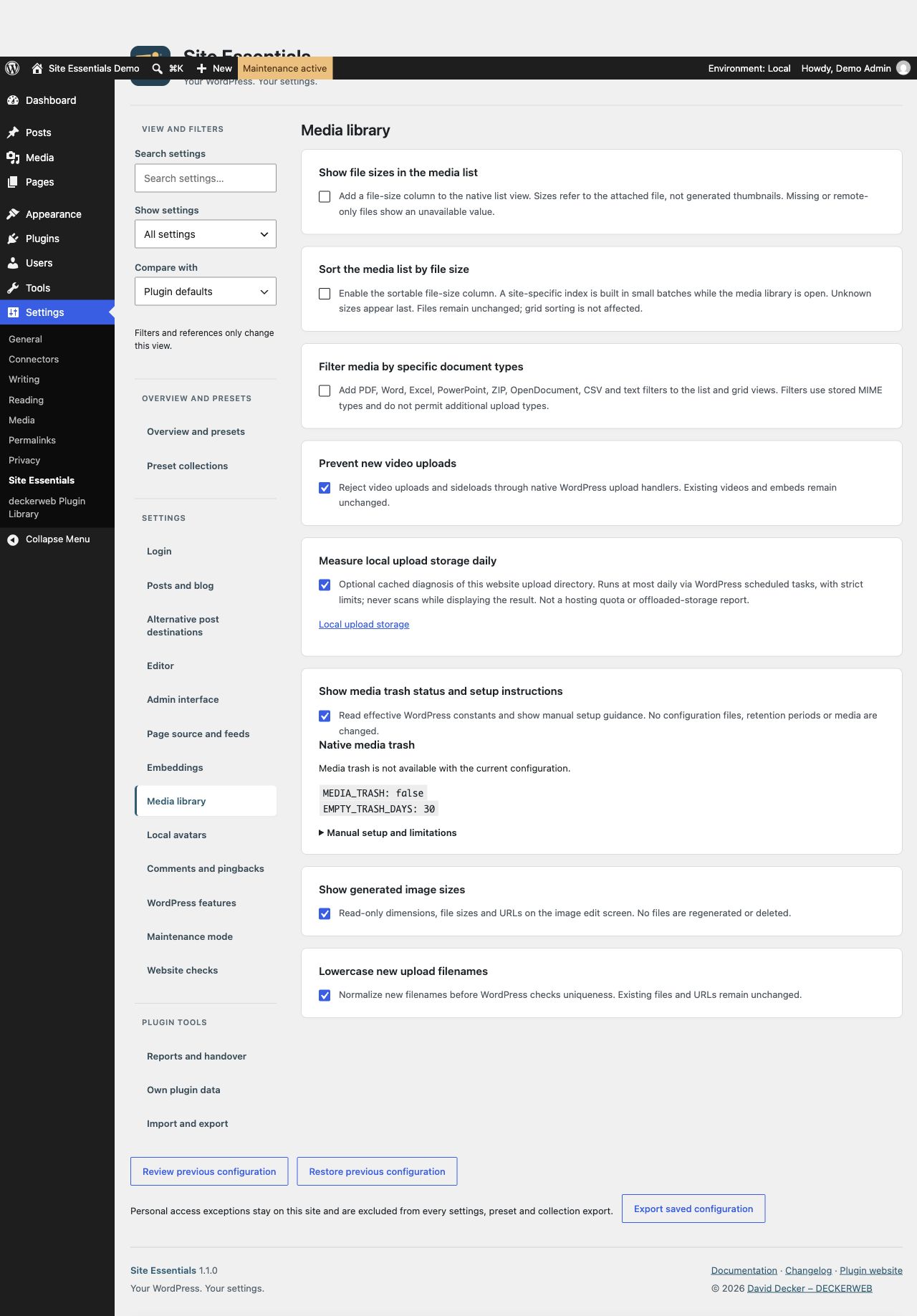

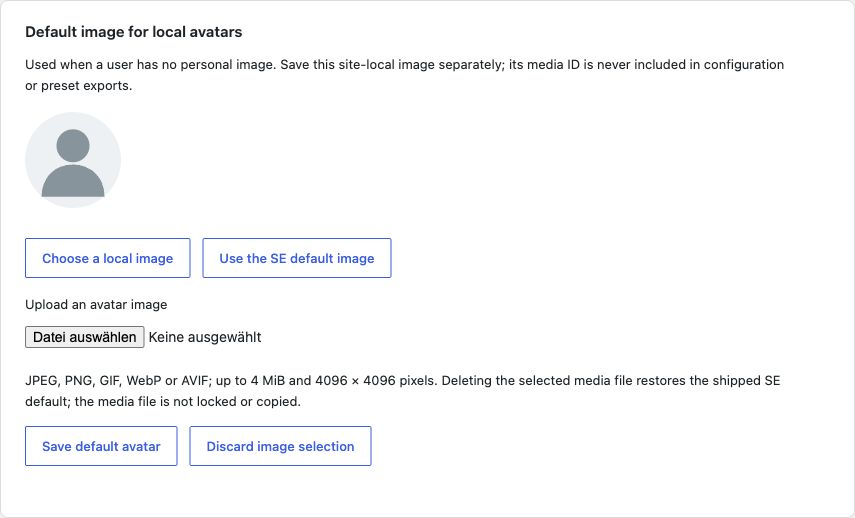
Maintenance & website health




Requirements & limits
Template editing is blocked, but existing templates still render. jQuery Migrate removal applies only to signed-out frontend visitors. Heartbeat intervals are initial polling settings; WordPress or another script can subsequently adjust them. Revision limits do not run an immediate cleanup; core may prune older revisions on later saves. Existing comment hiding applies to ordinary frontend comment templates, not arbitrary custom database queries. XML-RPC blocking occurs after WordPress loads; it is not a web-server firewall.
What happens when I first activate Site Essentials?
Three checks for administrators are enabled initially: search-engine indexing, the privacy page and the legal-notice page. The plugin does not change these settings automatically or create legal texts. You choose which other optional features to enable. A startup configuration deliberately prepared before installation can change this starting point.
Do I have to use every feature?
No. Enable only the features this website needs. Start with a single setting and add more later. New optional modules in version 1.1.0 are off initially, and updating preserves your existing settings.
Can I reuse my settings on other websites?
Yes. Save proven settings as a template, called a “preset” in the plugin, and export it. On another website, review the proposed changes before saving. Personal access exceptions, active maintenance mode and other site-specific operational data are not simply copied across.
What do visitors see during maintenance?
Choose your own published WordPress page as the maintenance page. Visitors see it while administrators can continue working normally. Preview it before switching maintenance on, then test while logged out and clear the page cache if needed. Search engines receive a temporary-unavailability response. This is not a permanent coming-soon page or an access-control feature.
Can I leave helpful dashboard information for my clients?
Yes. Create an information widget with contact details or short website instructions. Explicitly choose the roles or individual users allowed to see it. Without an audience nobody sees it, and administrators are not granted access automatically. Normal settings exports exclude this text and the audience; saved text has a separate, explicitly confirmed transfer.
Will my existing comments remain if I turn comments off?
Yes. Turning comments off does not delete existing comments. Depending on your choice, comment features and the normal display of existing comments are hidden. Custom output from a theme or another plugin may behave differently.
What happens if I deactivate or delete the plugin?
The plugin stops applying its changes when inactive. Settings and your own presets are generally retained so you can return later. Content and media are not deleted automatically. There are exceptions: for example, timestamps recorded by the optional last-login feature are removed on uninstall. Dedicated cleanup tools are available; the documentation explains which data they affect.
SMALL STEPS. GOOD CHANGES.
What’s new?
VERSION1.1.1
Full changelog ↗Changes
- Improved: Grouped system information and storage overview with section shortcuts, clear labels and upload diagnosis guidance when disabled.
- Fixed: Comment editing no longer fails when WordPress passes a comment object to the alternative-destination meta-box hook.
- Fixed: Simplified toolbar greeting also handles escaped display names on WordPress 7.1.4.
THE ESSENTIALS FOR YOUR WEBSITE
At a glance
- Version
- 1.1.1
- Released
- 29 October 2026
- WordPress
- 7.1+
- PHP
- 8.2+
- Guide
- Deutsch / English
- License
- GPL v2 or later
- Developer
- David Decker
FOR YOUR NEXT STEP
Documentation & help
Guides, answers and release histories are collected here in the documentation.