
Make the admin yours
four moods, a brand strength slider, hover and keyboard previews, and up to 30 named schemes.

WORDPRESS PLUGIN · DECKERWEB
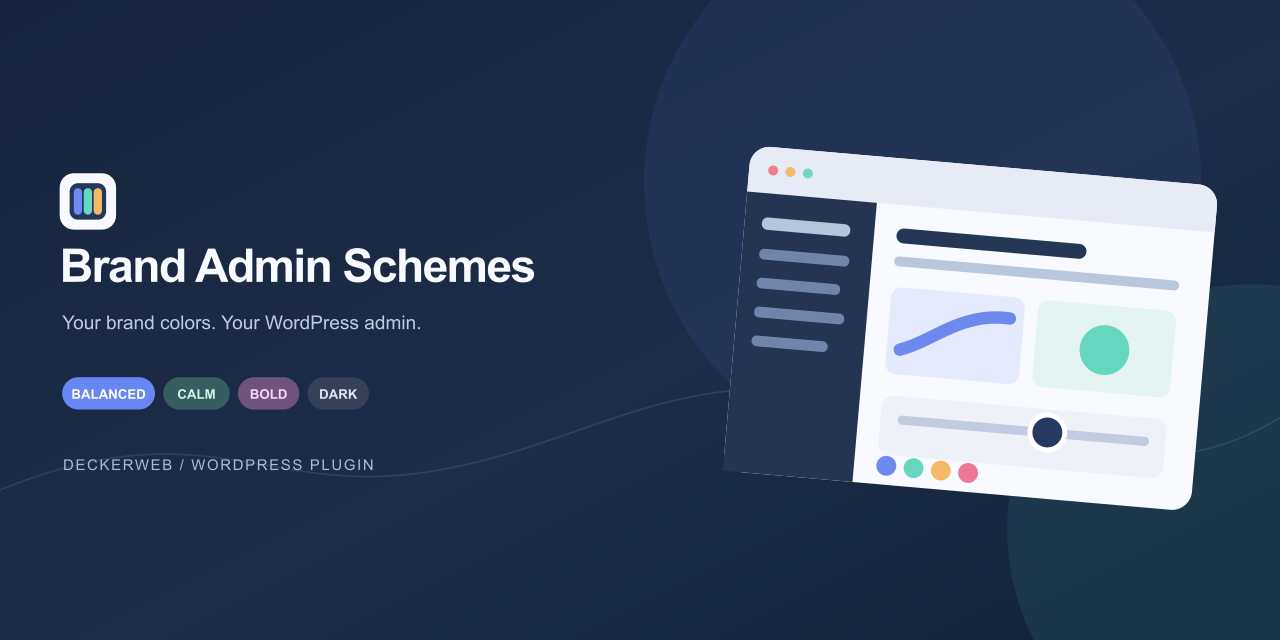
Brand Admin SchemesYour colors. Your WordPress. Turn a few brand colors into a familiar WordPress admin, a welcoming login screen, and browser tabs you can tell apart. Use Core Framework, Bricks Builder, Automatic.css, or your own palette. Explore the mood and brand strength, preview, then save. No CSS homework.
Small tools. For your everyday WordPress work.
WHAT’S INSIDE
four moods, a brand strength slider, hover and keyboard previews, and up to 30 named schemes.
optional Core Framework, Bricks, and ACSS integrations; manual colors always work.
responsive login layouts, a logo or small banner, a background photo or nine smooth gradients, editable text, and an optional quote.
separate favicons for the website, admin, and recognized builder editor.
compact Local, Development, Staging, and Live badges on the frontend and backend toolbar, with matching colors and optional favicon markers.
JSON settings, agency ZIP packages with supported login images, source-color comparison, Undo, and unsaved-change reminders.
optional default schemes, frontend toolbar colors, Gutenberg palette entries, bundled German translations, and regular WordPress updates.
Click Choose color beside an editable HEX field. Preview a color visually or enter its HEX value. Done closes the dialog; save all changes to apply branding. Locked roles must be unlocked before editing.
Export a portable template or an agency ZIP. Portable templates omit images, website text, initials and forced user defaults. Choose local images on the destination. An agency import adds images immediately; its settings still require review and saving.
Your stale save is rejected. Export your draft before reloading and compare it with the latest settings.
Up to ten previous settings snapshots are stored on this website. You can restore entries from your own account and storage scope. Restoration also restores your prior personal color and replaces an unsaved draft; the current state becomes a new history entry.
YOUR NEXT STEP
SMALL STEPS. GOOD CHANGES.
THE ESSENTIALS FOR YOUR WEBSITE
FOR YOUR NEXT STEP
Guides, answers and release histories are collected here in the documentation.