
User guide
GlotFrame — Illustrated user guide
Section titled “GlotFrame — Illustrated user guide”GlotFrame turns GlotPress into a translation portal with its own identity and a clearer interface.
WordPress block headers and footers, coordinated designs, improved project views and useful statistics help translators find their way. Set it up directly in WordPress without writing custom PHP.
A deckerweb tool for anyone who wants to shape GlotPress more easily and use it more comfortably.
Getting started
Section titled “Getting started”- Check WordPress 6.4+, PHP 8.3+ and GlotPress 4.x. Choose a readable permalink structure in Settings → Permalinks; Plain is not supported by GlotPress.
- Install the GlotFrame ZIP through Plugins → Add Plugin → Upload Plugin and activate it. Use the packaged ZIP supplied with a release, rather than GitHub’s automatic source archive.
- Open GlotFrame → Settings. The three jump links lead to Frontend & Layout, Admin & Toolbar, and Data & System.
- Beside the content assignments, choose Create block layout. Add blocks, give the layout a title and publish it. Create separate layouts for the header and footer if needed.
- Select the published layouts under Header, footer and content. Choose a preset, width and spacing. Enable GlotFrame and save.
- Use View GlotPress and check the project list, an individual language and the translation editor, including on a small screen.
GlotFrame can be installed and activated without GlotPress. You can prepare and save settings and layouts. Dependent frontend functions pause, an admin notice explains why, and stored data is preserved. They resume automatically when GlotPress 4.x and readable permalinks are available. There is no activation redirect out of the administration area.
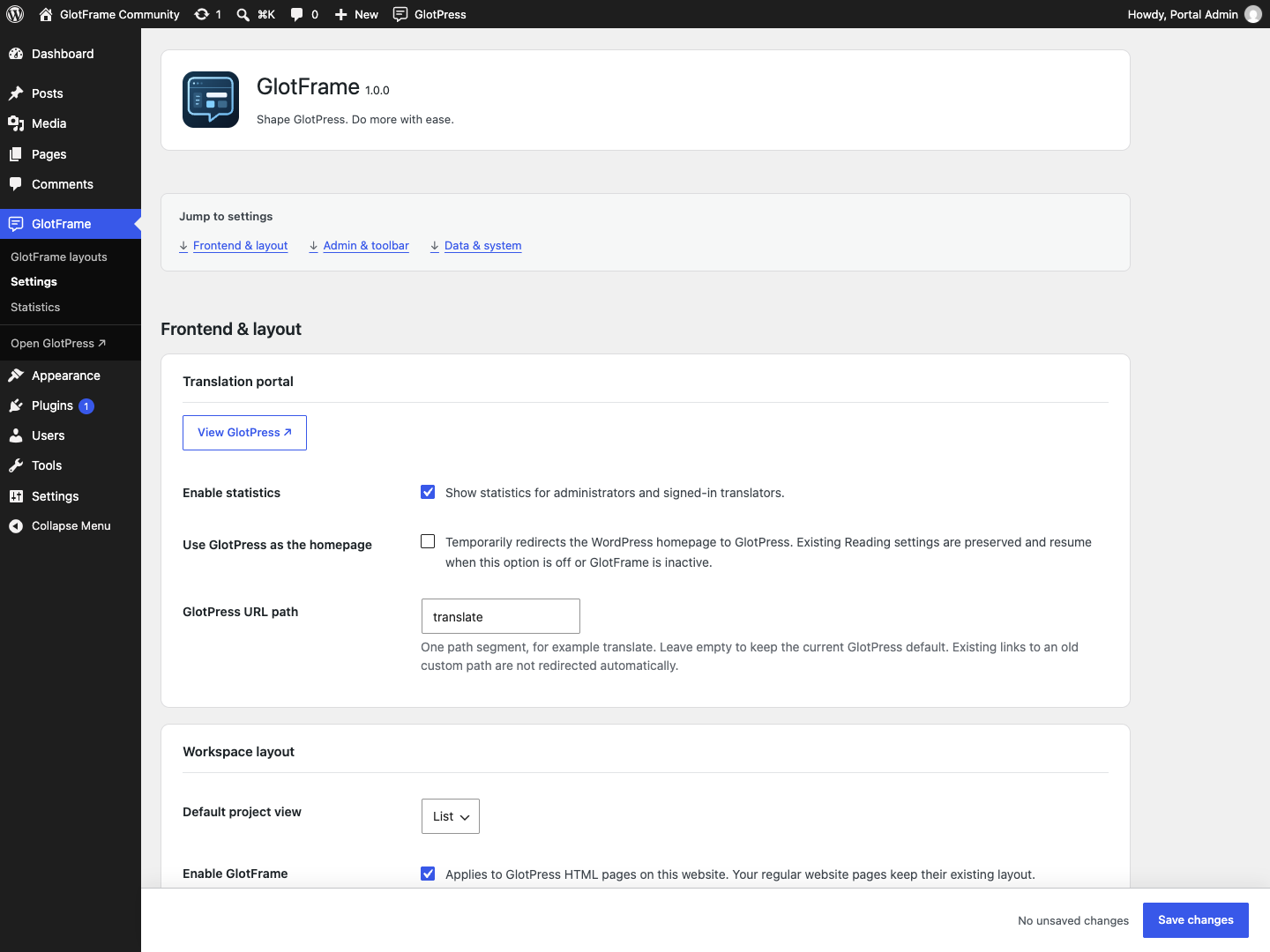
Settings overview with three grouped sections.

Assign published layouts and open them for editing.

Switch the root-project overview to grid view.
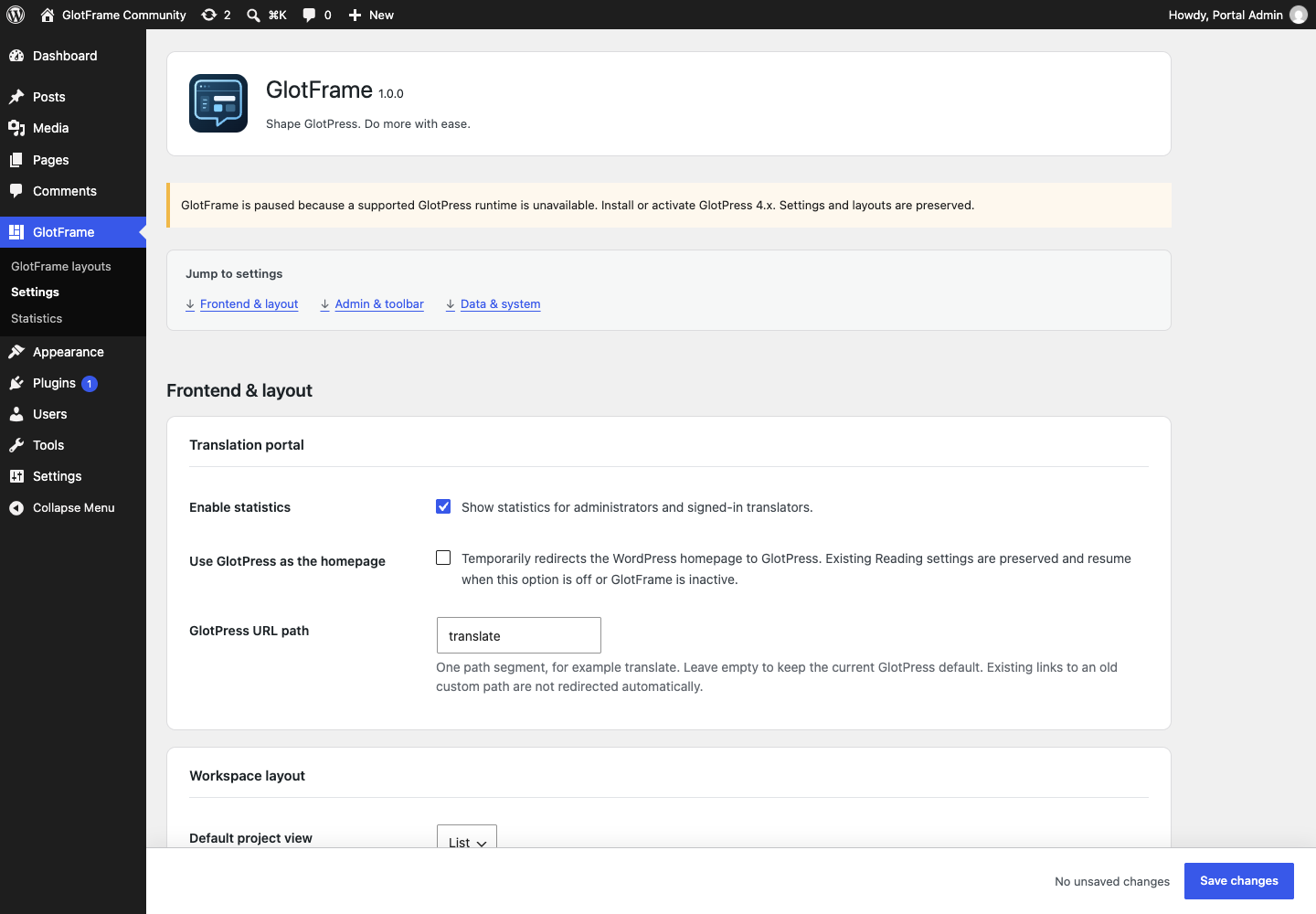
Prepare GlotFrame settings while GlotPress is paused.
Layouts and design
Section titled “Layouts and design”Build and assign layouts
Section titled “Build and assign layouts”Create layouts in the WordPress block editor. The four regions are header, content above the workspace, content below the workspace, and footer. Native GlotPress navigation remains available. Only published layouts without password protection are displayed. Draft, private and trashed layouts stay hidden.
The layout overview’s Used as column shows all assignments. Duplicate as draft creates an independent copy without changing the original or assigning the copy. Edit layout opens the selected layout directly. Save assignment changes on the settings page; publish content changes in the editor.
An unavailable assignment is labeled clearly. Restore publication before saving, choose a replacement, or save to clear it. Existing layouts are never replaced by patterns automatically.
Patterns and dynamic blocks
Section titled “Patterns and dynamic blocks”Open the block inserter: GlotFrame layouts contains seven starting patterns; GlotFrame contains Project overview, Current project, Project actions, Translation progress and Project group statistics. Choose a project in the block settings for context-dependent previews. Project actions respect native permissions. Group statistics show the selected project and its descendants.
Color, width and spacing
Section titled “Color, width and spacing”Choose boxed output for a visible outer background or full width for more horizontal space. Content width controls ordinary pages; the optional wider translation editor uses its separate width. Inner padding, corner radius, system font, text size and table density can be adjusted.
Eight presets are available: White, Night owl · Charcoal, Midnight blue, Sunlit sand, Warm terracotta, Harbor blue, Muted Bordeaux and Soft sage. Selecting a preset fills its color controls; adjust them before saving. It does not replace layouts, widths or background images. Use the WordPress color picker and Media Library for local backgrounds. Check text, links, controls and keyboard focus after customizing colors.
Page builders
Section titled “Page builders”Create and edit GlotFrame layouts with the WordPress block editor. Layout content created with Bricks, Elementor or other page builders is not supported. A builder edit button does not imply that its content can be displayed by GlotFrame. The active theme is not required to provide the portal header or footer.
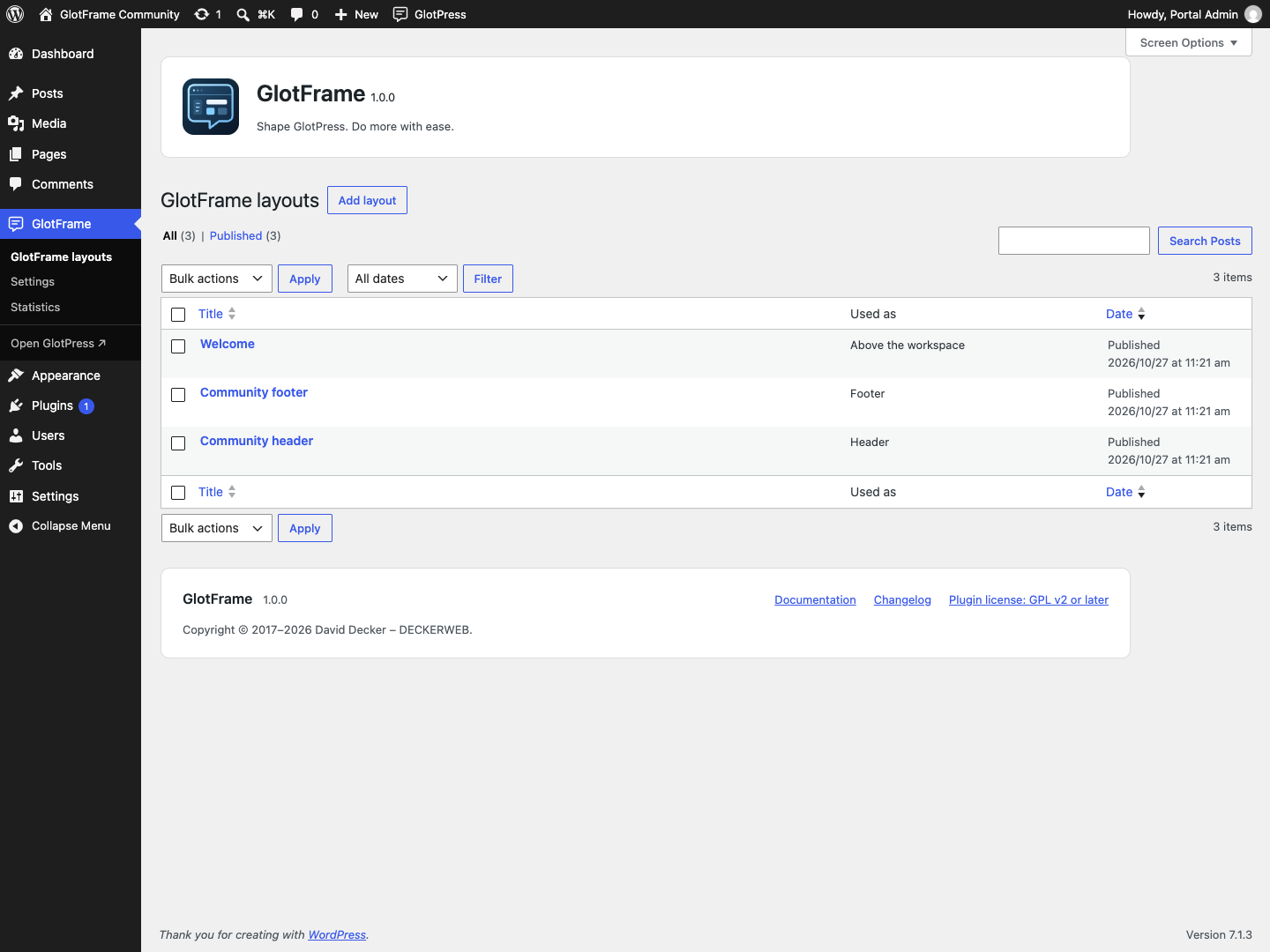
Layout overview showing usage and row actions.
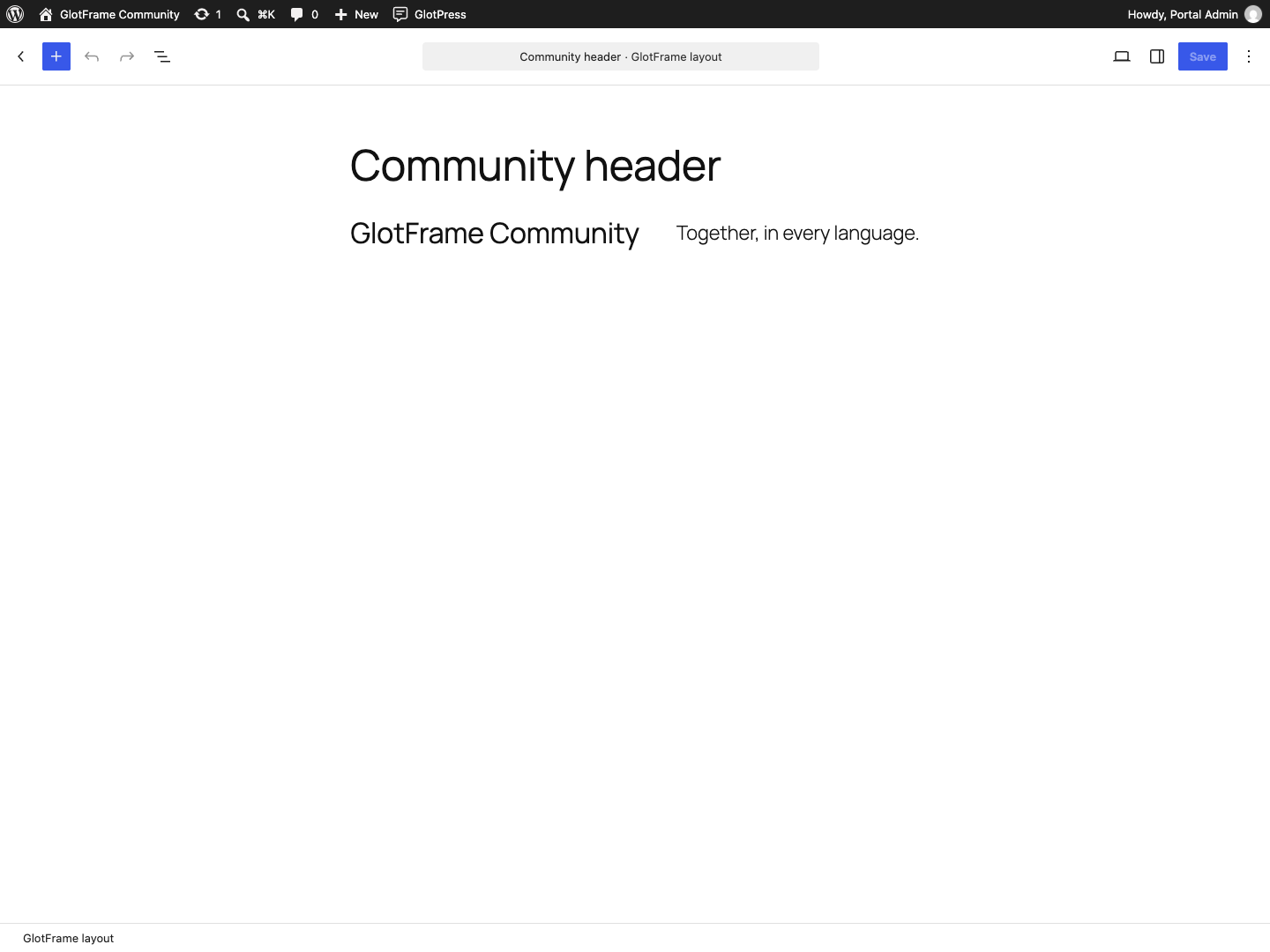
Create header content in the WordPress block editor.
Assign published layouts and open them for editing.

Set boxed width, editor width and inner spacing.
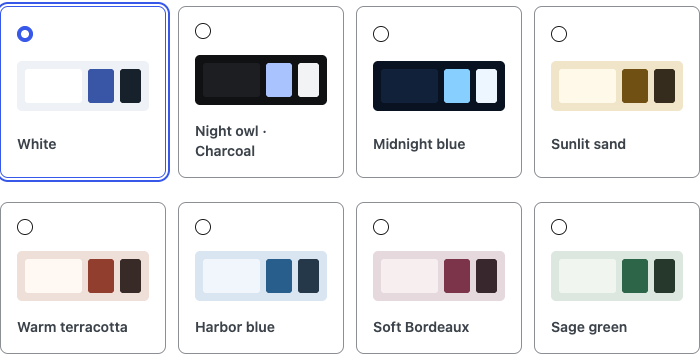
Choose from eight coordinated color presets.
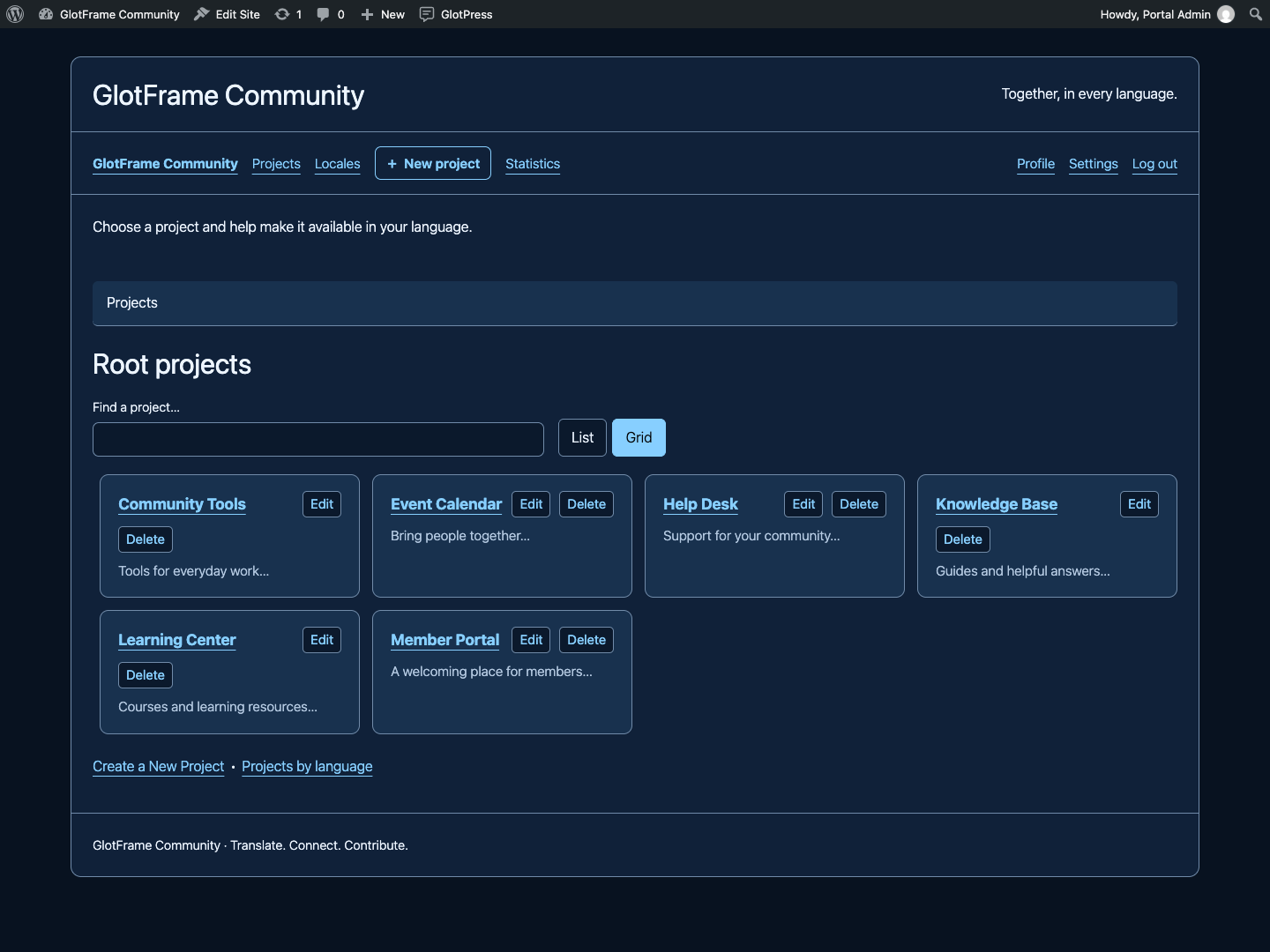
Midnight blue workspace example.
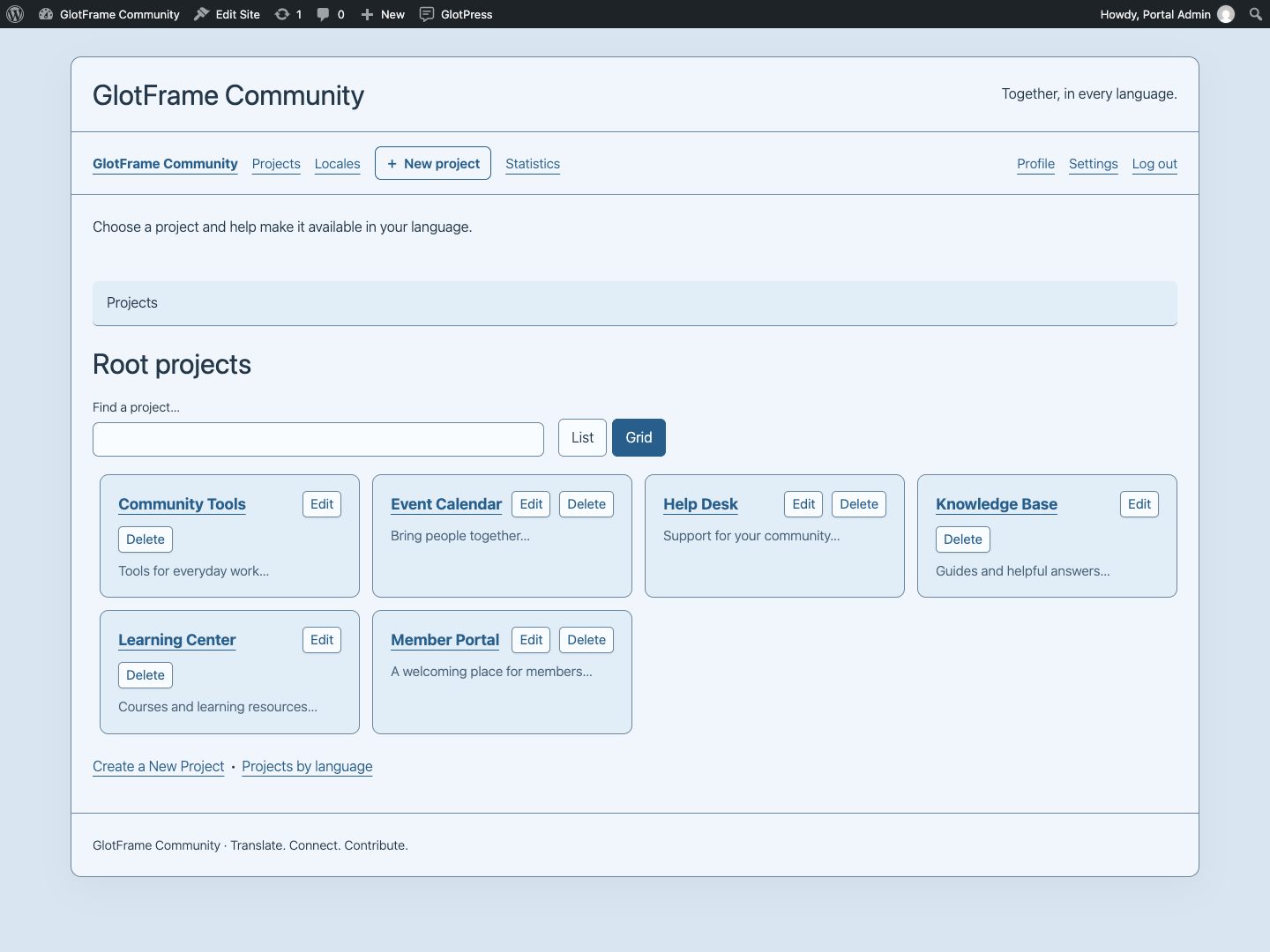
Harbor blue workspace example.
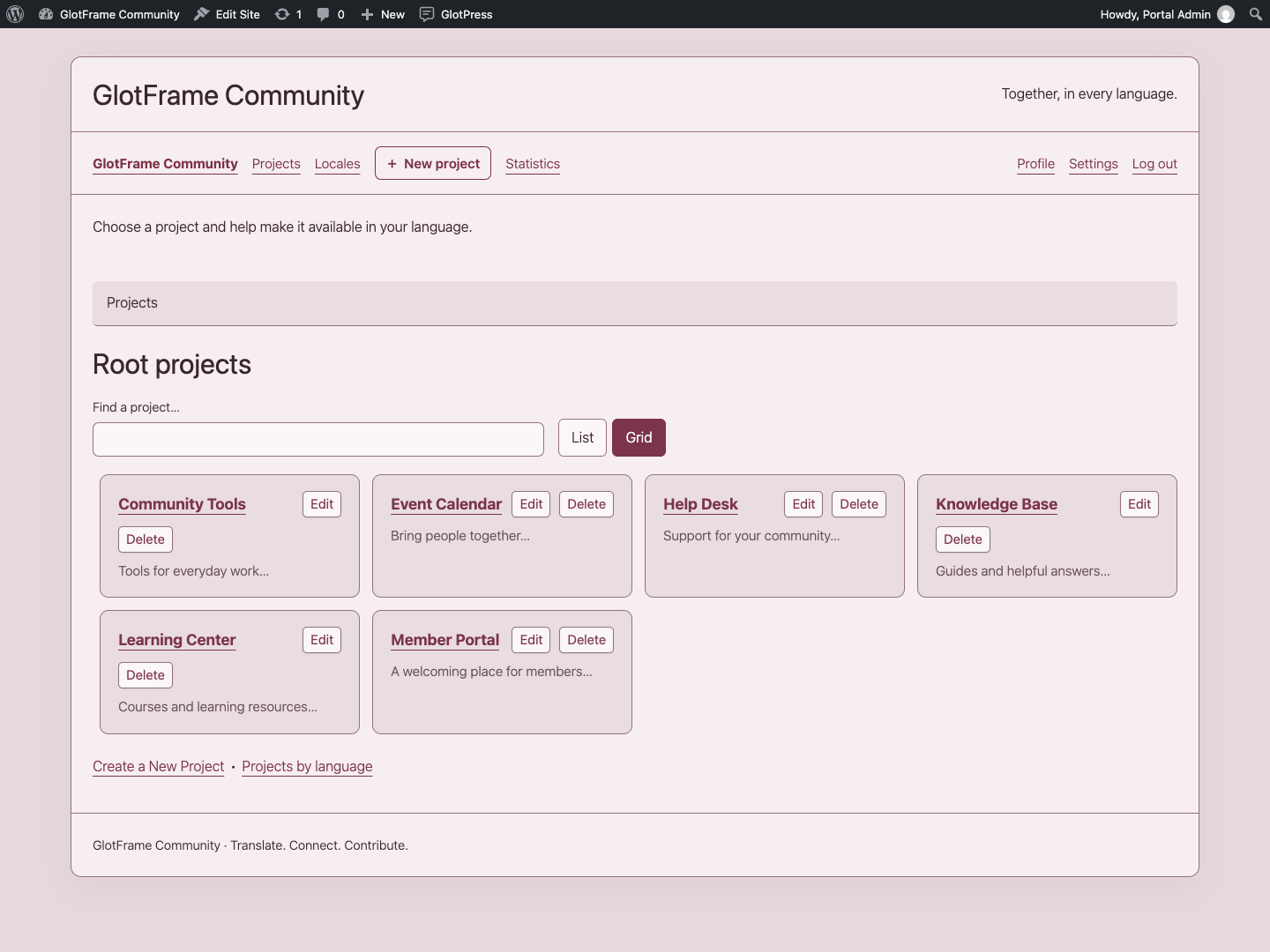
Muted Bordeaux workspace example.
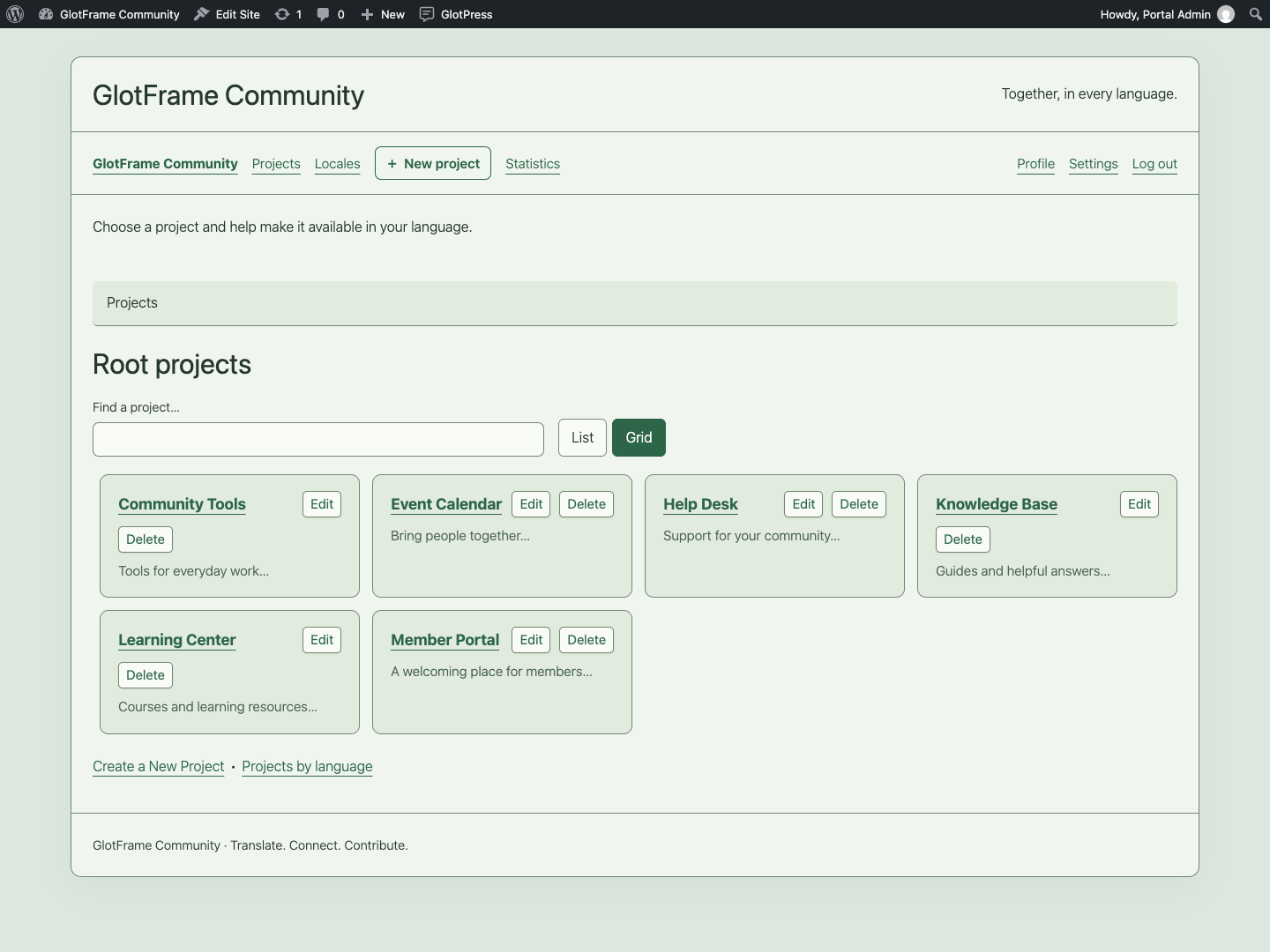
Soft sage workspace example.

Project navigation on a small screen.
Projects and translation
Section titled “Projects and translation”Find projects
Section titled “Find projects”Root projects and subprojects have a search field and List/Grid switch. Search filters the displayed collection; it is not a search across translation strings. Your view choice is retained in this browser when local storage is available. Project descriptions and edit links remain attached to their project.
The native parent-project selector is searchable and shows project paths. This helps distinguish repeated names in different branches. If JavaScript is unavailable, native GlotPress controls remain usable.
Actions and editor
Section titled “Actions and editor”Authorized users can reach New project from the workspace navigation and the toolbar. The current project also offers a subproject shortcut. These links open native GlotPress forms, retaining its permission and validation rules. Project actions expand below their toggle and do not reserve a side column.
Translation tables use alternating rows and hover feedback, a compact Prio heading, defined checkbox widths, comfortable cell spacing and separated navigation, legend and export controls. Details and Cancel retain the native editor workflow. Export formats and translation data remain managed by GlotPress.
Languages and glossaries
Section titled “Languages and glossaries”The language overview has aligned columns and its native language filter. Language-specific project tables distinguish project information, translation sets and counts. Glossaries show terms, parts of speech, translations and comments with clearer row spacing. GlotFrame does not change glossary permissions or stored entries.
German informal and formal interface
Section titled “German informal and formal interface”Choose GlotPress interface language in the settings: inherit WordPress, German informal or German formal. Bundled official GlotPress 4.1.0 catalogs cover PHP and JavaScript. The choice affects the GlotPress interface only, not WordPress administration or project translations. Unknown strings from extensions or other GlotPress versions retain native fallback behavior.
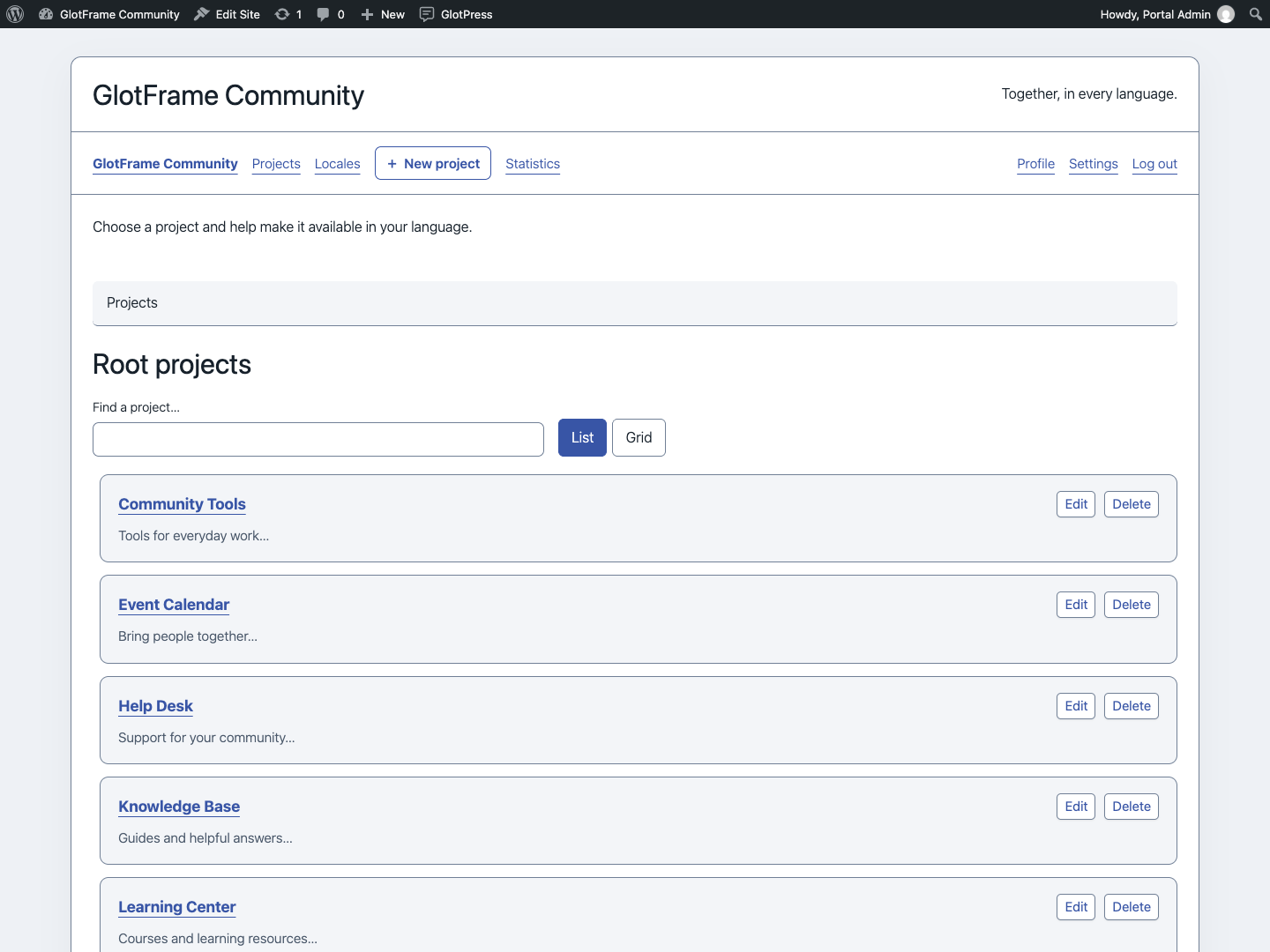
Search root projects in list view.
Switch the root-project overview to grid view.
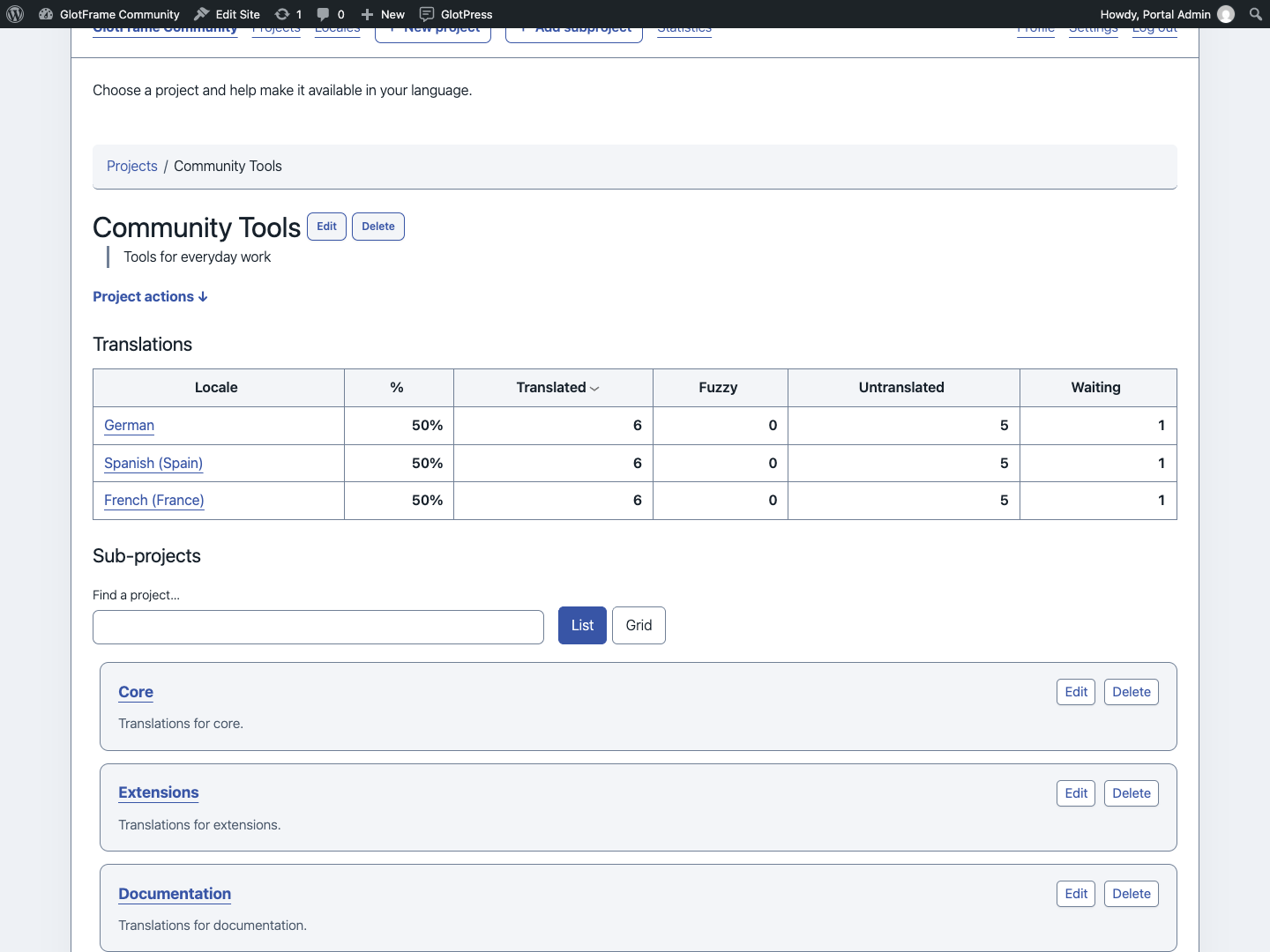
Find and browse the current project’s subprojects.
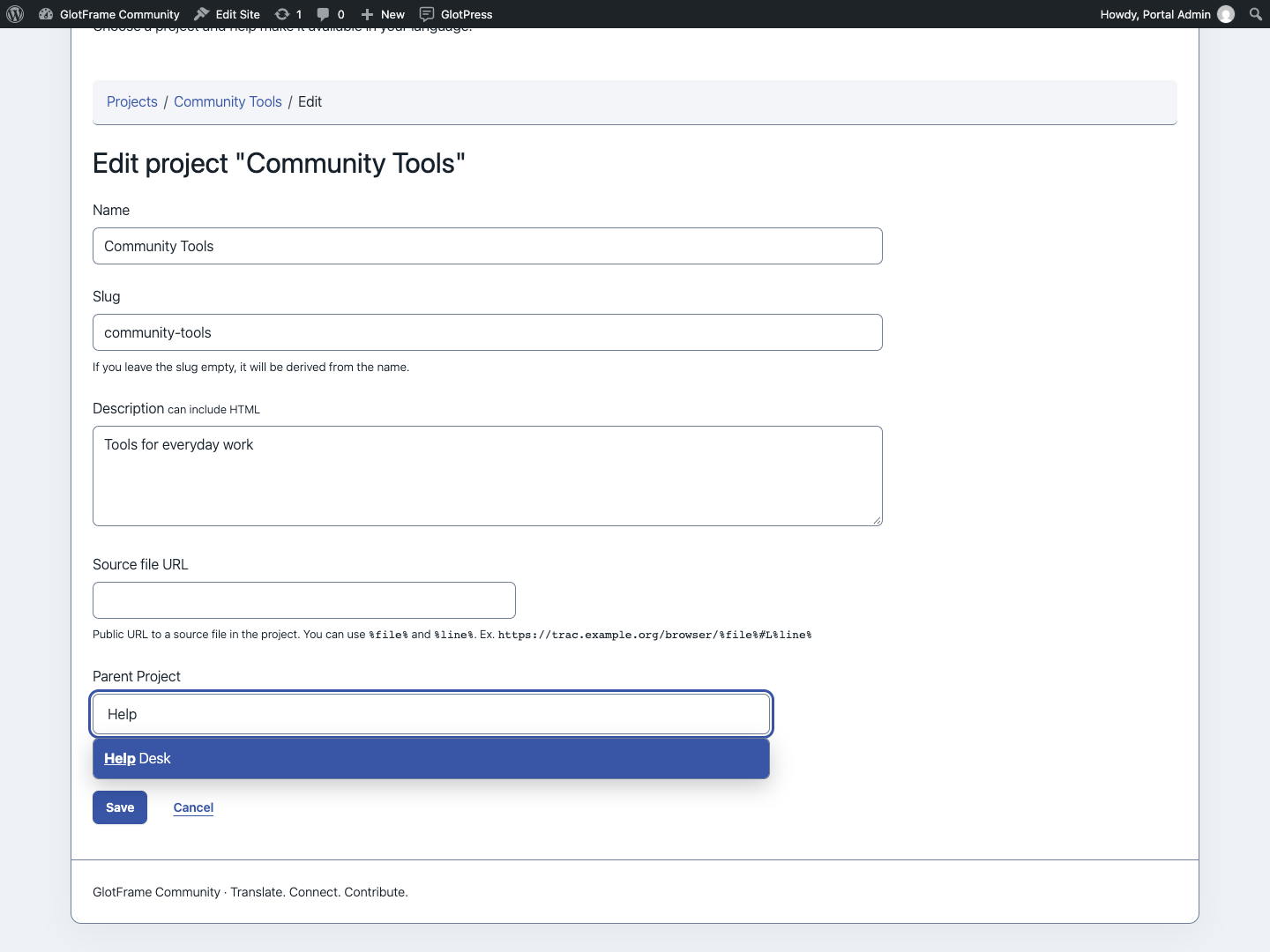
Search the parent-project selector while editing a project.
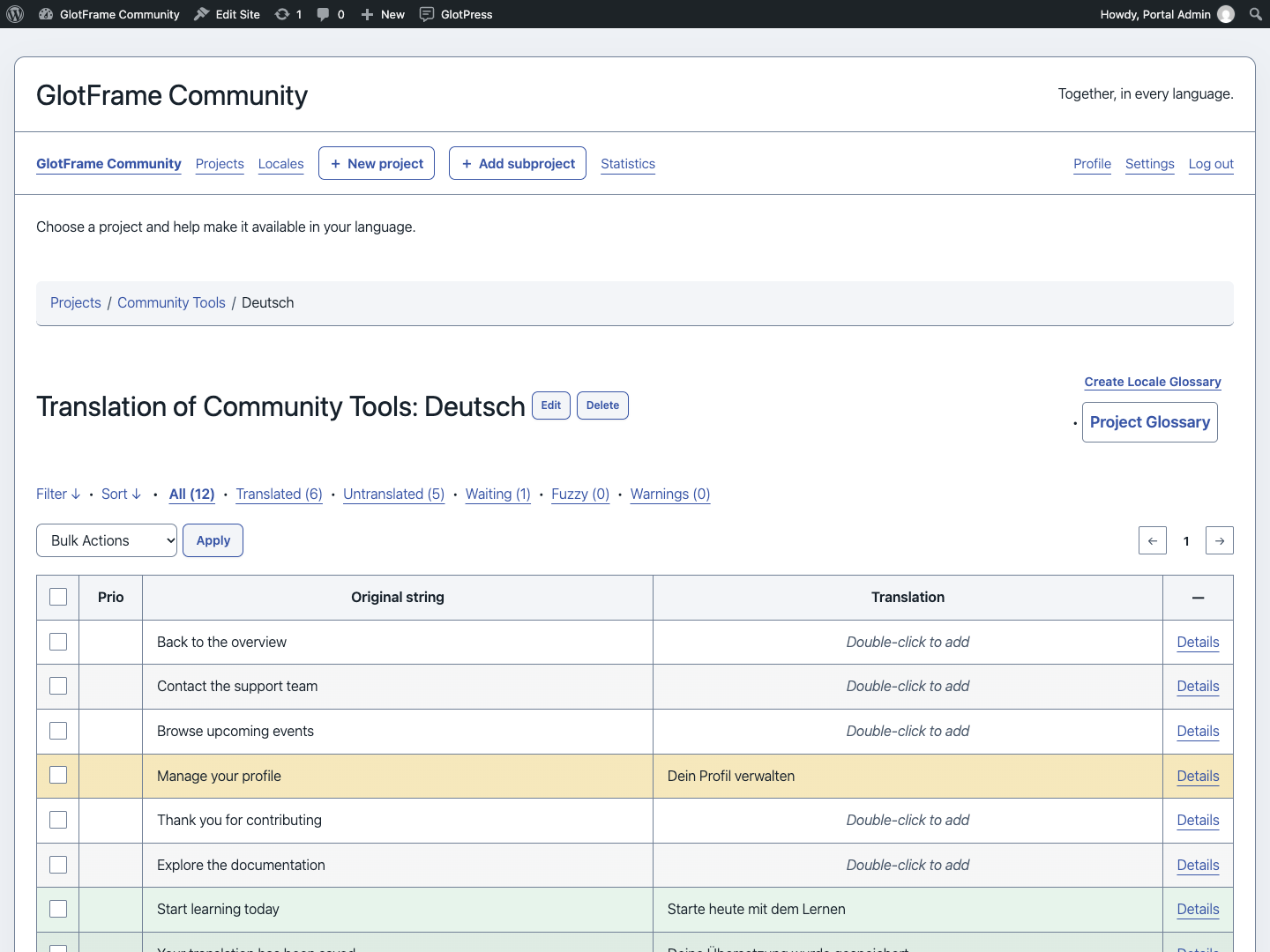
Translation table with alternating rows and separate controls.
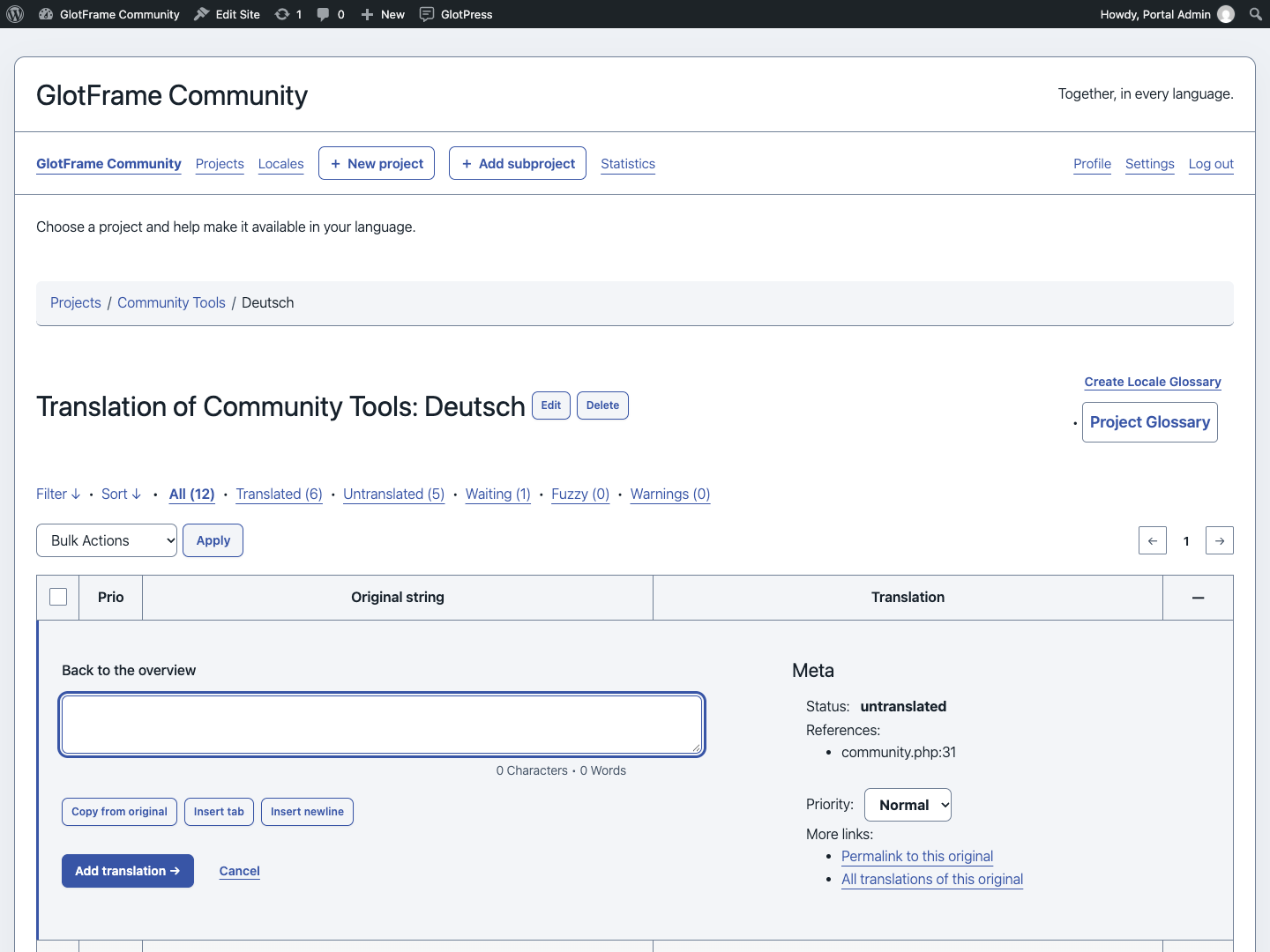
Open Details to work on a translation.
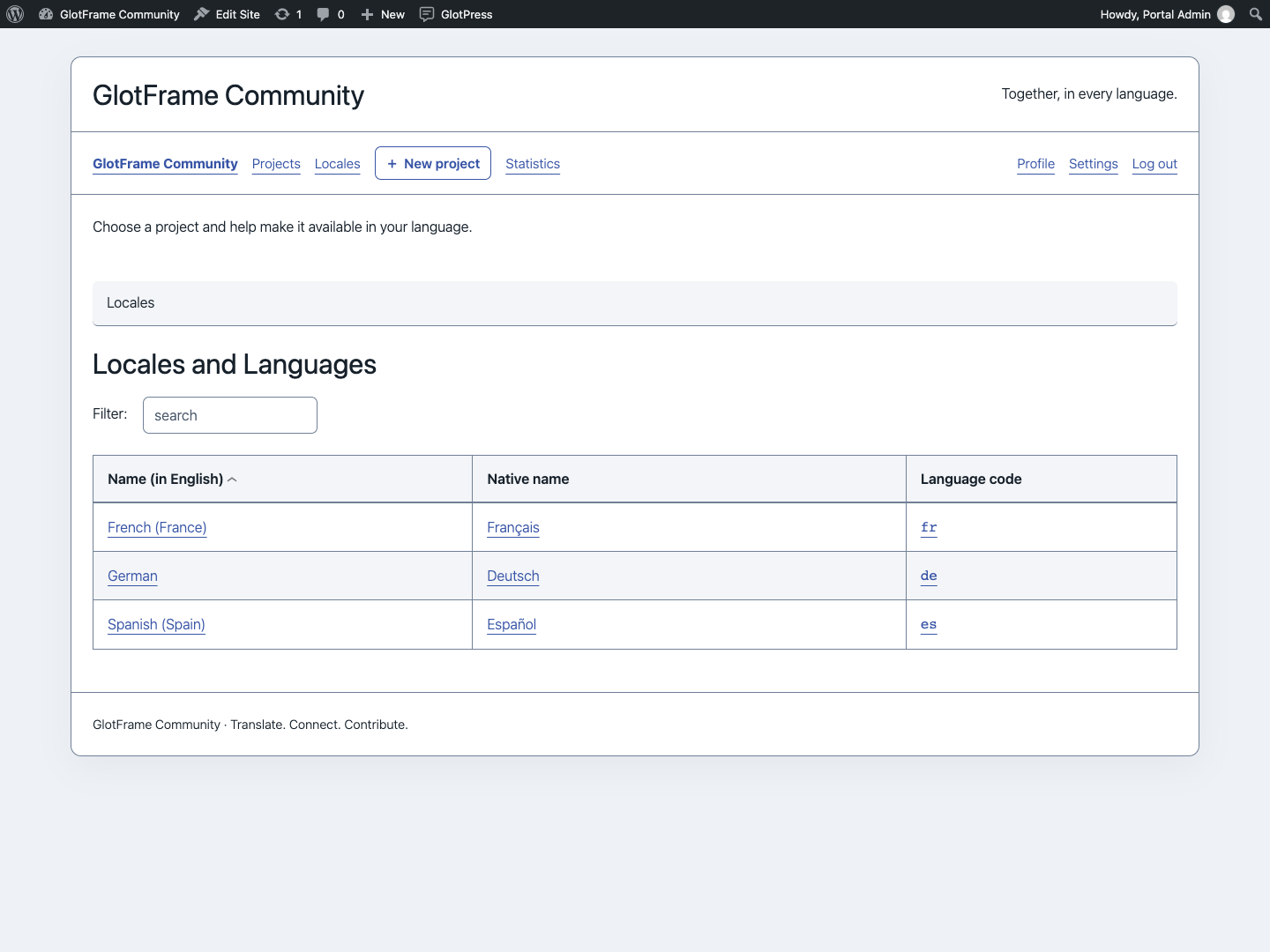
Filter the aligned language overview.
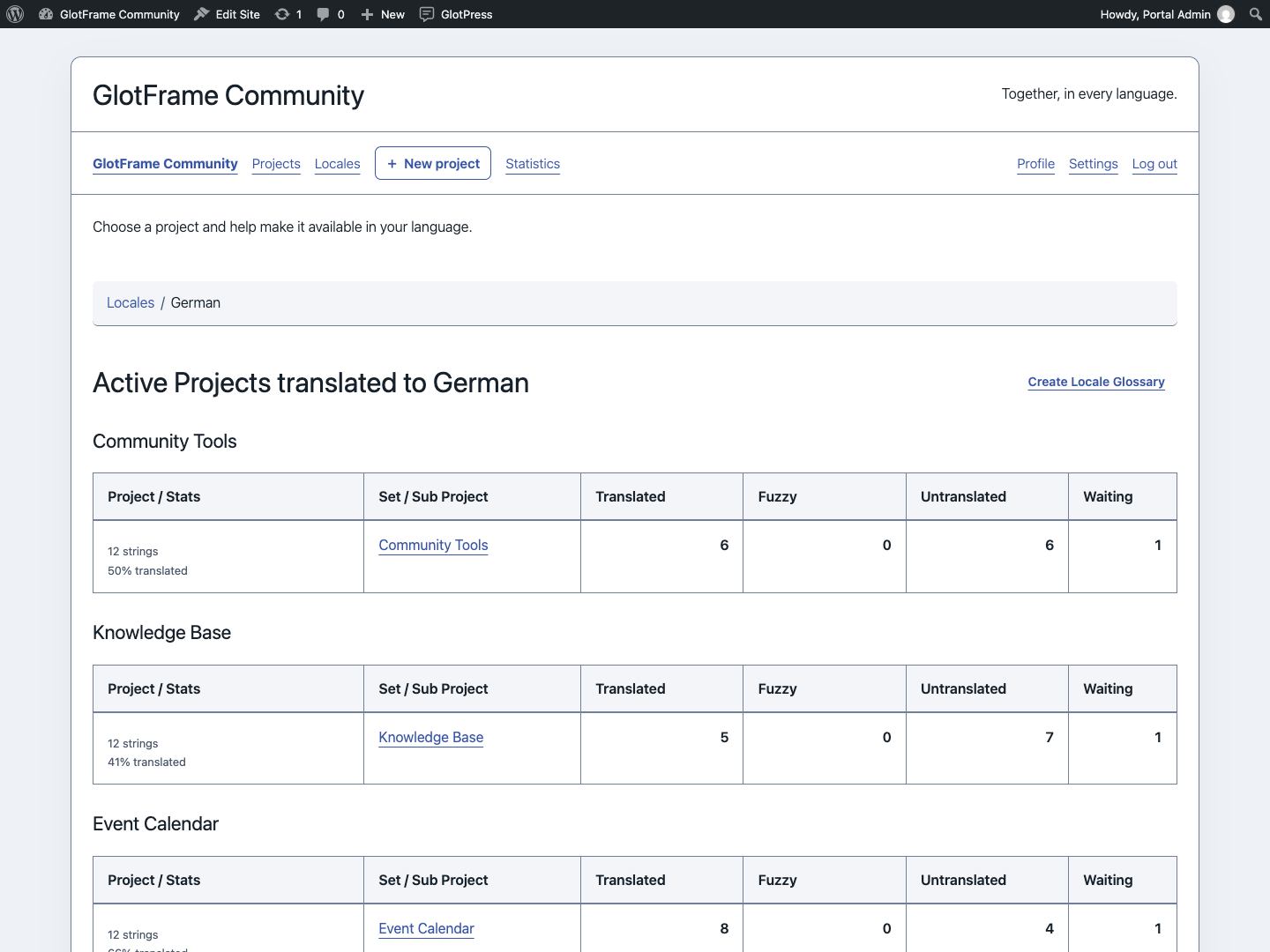
Compare translation sets for a selected language.

Read consistent terminology and create glossary entries.
Portal and toolbar
Section titled “Portal and toolbar”Portal homepage and URL path
Section titled “Portal homepage and URL path”Enable Use GlotPress as the homepage if the website primarily serves translation work. It temporarily redirects eligible homepage GET/HEAD requests to GlotPress. WordPress administration and other pages remain reachable. Existing Reading settings are preserved and apply again when the option or plugin is disabled. The settings page and dashboard identify the active portal.
The custom URL path accepts one segment, such as translate. Leave it empty to keep the current GlotPress default. Reserved paths and known content conflicts are rejected. Links to an old custom path are not redirected automatically: update menus and bookmarks after changing it.
Toolbar
Section titled “Toolbar”The GlotPress entry is enabled by default for signed-in users with a visible WordPress toolbar. Set its label and icon, show root projects, optionally include subprojects and choose a depth from one to six levels. Sixteen SVG motifs are available, with the WordPress symbol as fallback.
Choose the standard position, first or last on the left, the right group, or before/after an existing entry. Select a reference that is actually present. If that reference is missing on another page, GlotFrame uses its standard placement. Position and label are website settings, not personal preferences. The final admin submenu opens GlotPress in a new tab.

Configure toolbar identity, projects, depth and placement.
Statistics
Section titled “Statistics”Open GlotFrame → Statistics for the operator overview. Signed-in translators reach frontend statistics through workspace navigation or the toolbar. Choose your own contributions or project groups, then narrow projects, language and translation set. A selected project includes its descendants.
Cards, a completion graphic and a project-language comparison matrix show the current state. Overall completion is weighted by source strings per translation set, not the average of project percentages. One source string in three language sets creates three translation tasks. Empty projects do not produce a misleading 100%.
Waiting proposals and warnings can overlap other counts; they are not extra slices of completion. Public active strings are the default. Including hidden strings requires native GlotPress authorization.
Personal contributions count retained records attributed to the signed-in user. Their date filter applies to the stored submission date, not overall completion. Imports, overwritten or deleted records affect what the figures can represent. This is not a complete activity history, productivity score or quality ranking.
No history table, background tracking or analytics service is created. The calculation time is shown. The Project group statistics block places a compact summary of the selected group in a layout.
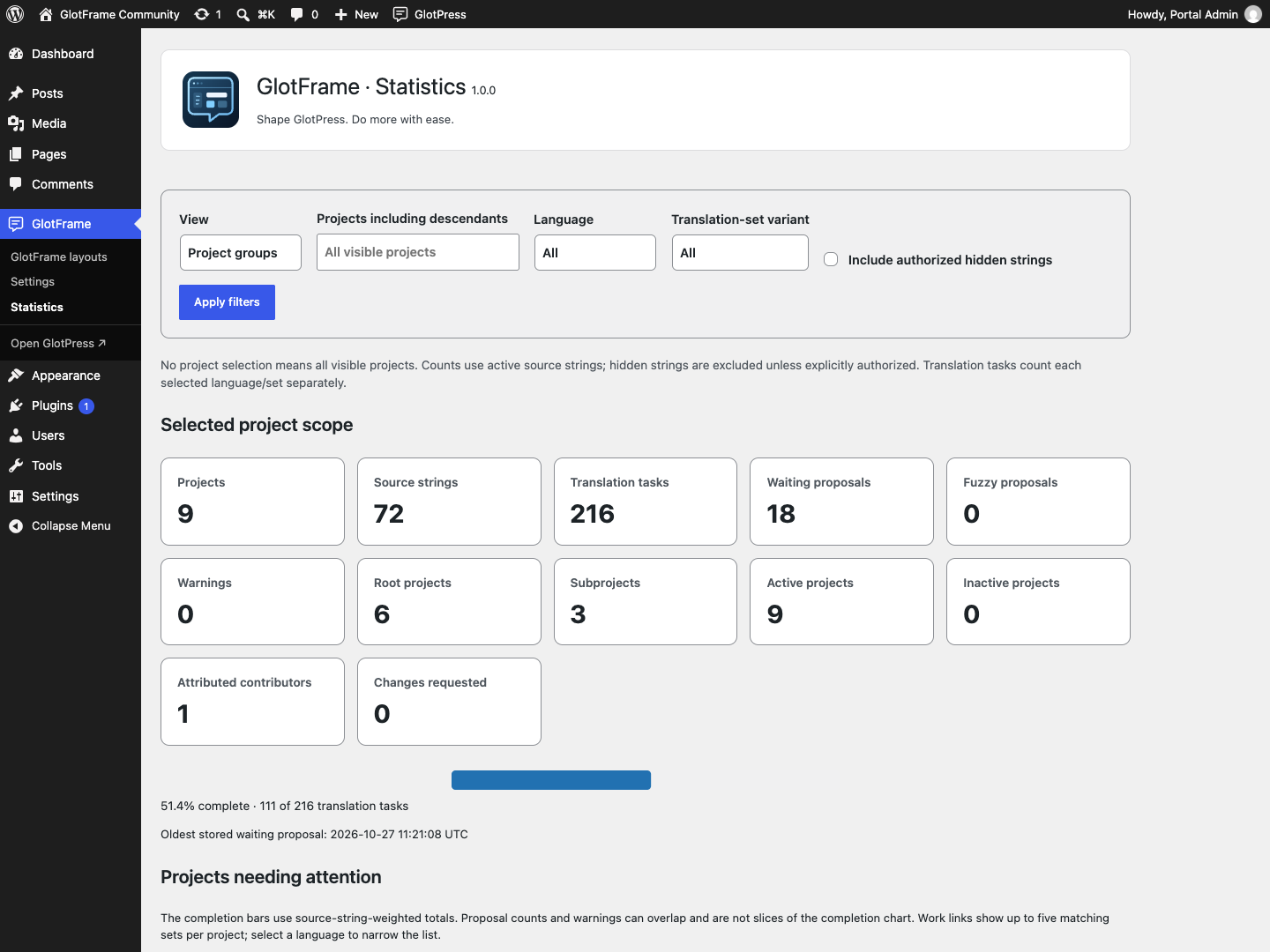
Operator statistics with filters and completion graphic.

Signed-in translator statistics and project-group filters.
Administration and data
Section titled “Administration and data”Saving and diagnostics
Section titled “Saving and diagnostics”The fixed save bar shows unsaved changes beside the button and a spaced dot inside it. Returning all values to their original state clears the indicator. Use Ctrl+S on Windows/Linux or Cmd+S on macOS on the settings page; native validation still applies. The block editor retains its own save workflow. Without JavaScript, the standard submit button remains available.
Under Tools → Site Health → Info, GlotFrame lists version, runtime availability, layout assignments and component status without layout contents, project names, paths or credentials. Its status check identifies a safe pause and configuration issues without external requests.
Search for GlotFrame in the existing WordPress Command Palette to create a block layout or edit a valid assigned header/footer. Commands are for authorized website administrators in native supported contexts. Older WordPress versions may offer the palette only in the block editor. No second palette or additional shortcut is installed.
Permissions and Multisite
Section titled “Permissions and Multisite”Website administrators with manage_options configure GlotFrame and edit layouts. Translation and project actions retain native GlotPress permissions. Signing in does not grant project management rights.
Network activation makes GlotFrame available to websites, but settings and layouts remain per website. There is no network-wide design preset. Newly created websites receive defaults rather than another website’s layouts.
Privacy, updates and removal
Section titled “Privacy, updates and removal”GlotFrame uses local assets and system fonts and adds no telemetry. Its updater contacts GitHub during WordPress update checks, sharing ordinary connection data such as the IP address. The optional deckerweb Library online catalog starts disabled. Other GlotPress or WordPress services retain their own behavior.
Deactivation preserves data. Deletion preserves settings and layouts by default; temporary plugin caches are cleaned. The optional delete setting removes this website’s GlotFrame settings, layouts and revisions. Network deletion evaluates each website’s choice. It never removes GlotPress projects or translations. Shared Library cleanup has its own last-host policy and retains data needed by other installed hosts.

Review optional deletion and retained data.
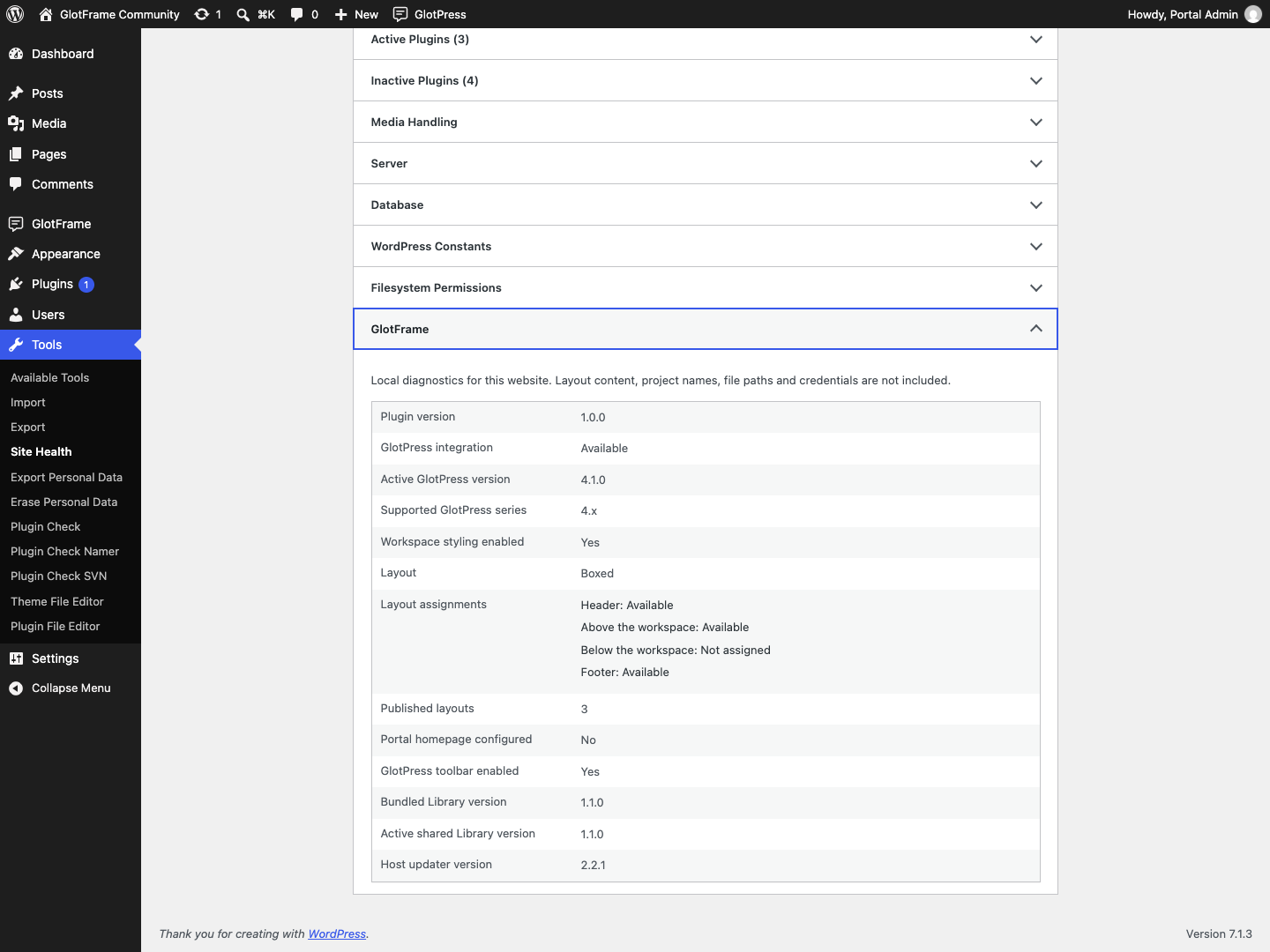
Local GlotFrame diagnostics in Site Health.

GlotFrame actions in the native WordPress Command Palette.
Imported from the published release 1.0.0. Original source · Deutsch